
Clistron Cam — Help for iPhone & iPad
Taking a photo
Tap the shutter button at the bottom center of the screen to start a capture. Clistron Cam takes a burst of frames — 30 every second for exposures up to 3 seconds, about 10 every second beyond that — for the Exposure Time you’ve set (0.5–60 seconds), and blends them into one photo as they come in. You’ll see the result build up live on screen, not just a progress bar, so you can watch the exposure develop in real time.
Top bar controls
- Front / back camera — switch which camera you’re shooting with.
- Lens — pick from the zoom levels your device actually has (0.5x, 1x, 2x, 4x, 8x — the exact set depends on your phone’s lenses).
- Flash — toggle the flash on or off for the current shot.
Bottom bar controls
- Settings (left) — opens the settings panel described below.
- Shutter (center) — starts the timed capture.
- Last photo (right) — a thumbnail of your most recent shot; tap it to open the Gallery.
Settings
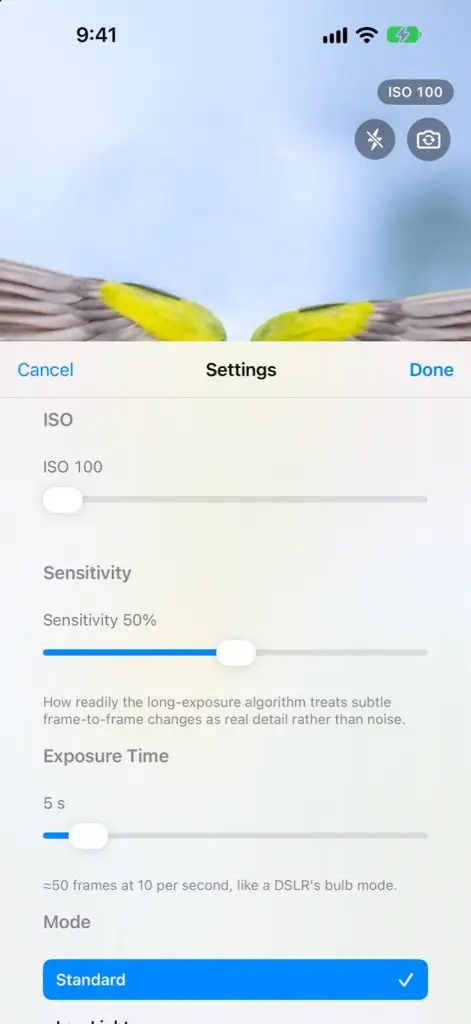
- ISO — controls the camera sensor’s sensitivity to light, the same ISO you’d set on a DSLR. Higher values brighten dark scenes but can add grain.
- Sensitivity — how readily the long-exposure algorithm treats subtle frame-to-frame changes as real detail rather than noise. Raise it to pick up fainter detail; lower it to suppress noise more aggressively.
- Exposure Time — how long the “shutter” stays open, from 0.5 to 60 seconds (shown as 1/2 at the shortest setting) — 30 frames captured per second up to 3 seconds, about 10 per second beyond that, just like a DSLR’s bulb mode.
- Mode — tap a mode in the list to select it:
- Standard is the plain long exposure — every captured frame is blended into one noise-free photo, with none of the effects below.
- Low Light runs that same blend, then boosts overall brightness — pulls out detail in scenes too dark for a normal exposure.
- Blur averages every frame with no highlight protection, so anything that moved during the exposure smears into a smooth, silky blur — waterfalls, clouds, crowds — while whatever stayed still comes out sharp.
- Trail keeps the brightest value seen at each point in the frame across the whole exposure, so a moving light source (car headlights, stars, sparklers) leaves one continuous bright trail while the rest of the scene stays at its normal brightness.
- Ghost works like Trail, but only samples a handful of frames spread across the exposure instead of every one — so a moving subject leaves several distinct repeats (“ghosts”) instead of one unbroken line, like a stroboscopic photo.
- Glow brightens highlights beyond a plain average and spreads a soft halo from them into the surrounding pixels — gives point light sources (string lights, candles, neon signs) a warm glow instead of a hard edge.
- Resolution — HD, Full HD, 4K, or your device’s maximum. Higher resolutions look better but take more processing per frame — lower this if captures feel slow on your device. Options your current camera/lens can’t reach are disabled automatically.
- All Zooms On — when on, shows every zoom level (0.5x–8x) including digital zoom beyond your device’s physical lenses. Off by default, so you only see the lenses your device actually has.
- Info — opens the Clistron Cam page on our website.
- Help — opens this page.
- Privacy Policy — opens our privacy policy.
Tap Done to save your settings or Cancel to discard changes.
Gallery
Tap the last-photo thumbnail to open the Gallery — a grid of every photo you’ve taken in Clistron Cam. Tap any photo to open it full screen.
Sharing a photo
From the full-screen photo view, tap Share (bottom right) to open your iPhone’s share sheet. From there you can keep the photo with Save Image, or send it to Instagram, Facebook, Viber, Messenger, Messages, Mail or any other app that accepts images. The options you see depend on the apps installed on your device.
Free to use
Clistron Cam is free to use, with no ads and no in-app purchases. It does not collect any data — see the Privacy Policy.
Tips for good long-exposure shots
- Hold your phone as steady as possible (or use a small tripod/stand) — the algorithm corrects for noise, not for camera shake.
- Trail mode works best for moving lights at night — traffic, city skylines, sparklers, star trails.
- Blur mode is great for smoothing motion — waterfalls, clouds, crowds.
- Low Light mode helps pull detail out of very dark scenes without a flash.
- Ghost mode suits the same moving-light scenes as Trail when you want distinct repeated positions instead of one unbroken line.
- Glow mode adds atmosphere to shots with strong point-light sources — string lights, candles, neon signs.
- Longer Exposure Time settings need a steadier hand (or a stand) since more frames are being combined over more time.